Apple's battery icon, with the time left
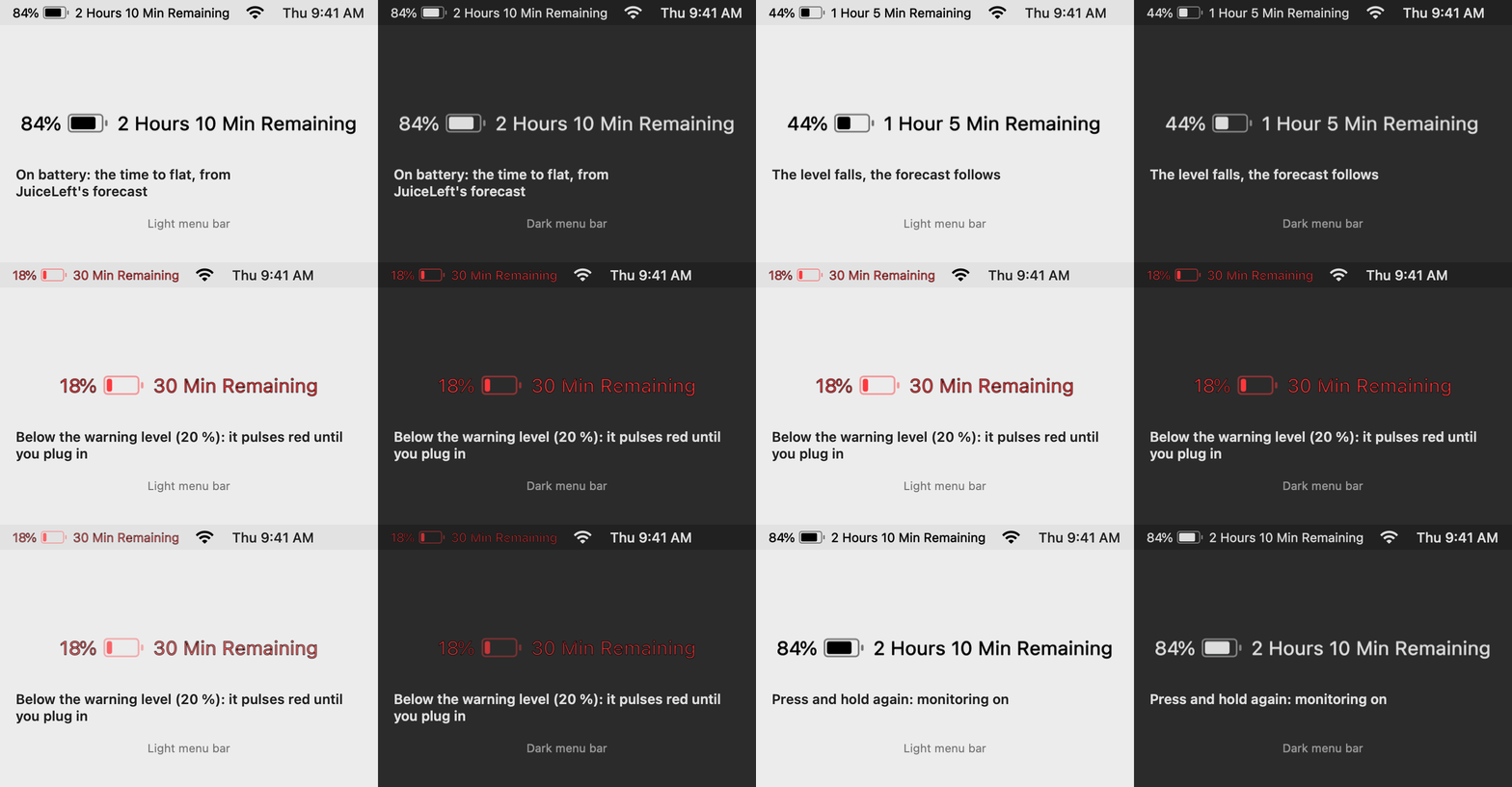
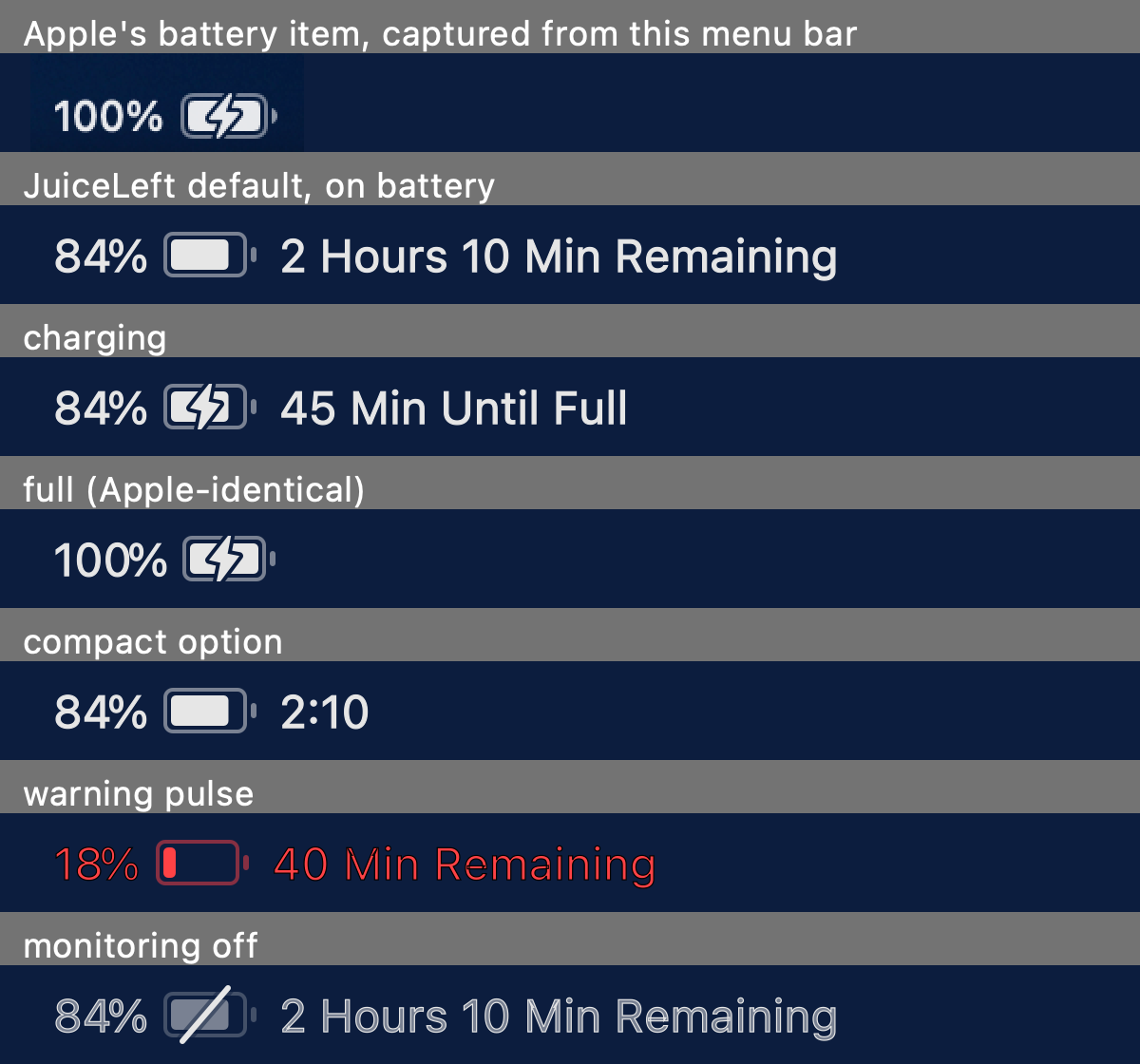
JuiceLeft's item is drawn to Apple's exact geometry and takes Apple's spot: 84% [battery] 2 Hours 10 Min Remaining, 45 Min Until Full while charging, just 100% [battery] when full. Below the warning level the whole item pulses red until you plug in; a press-and-hold turns monitoring off and puts a slash through the glyph. Quit JuiceLeft and Apple's item comes back exactly as it was.
When, not just how much — and how to make it later
A forecast that learns from its own misses, alerts that never nag twice, one click that buys you hours, and the settings that keep a battery healthy — in one panel.
A forecast that learns
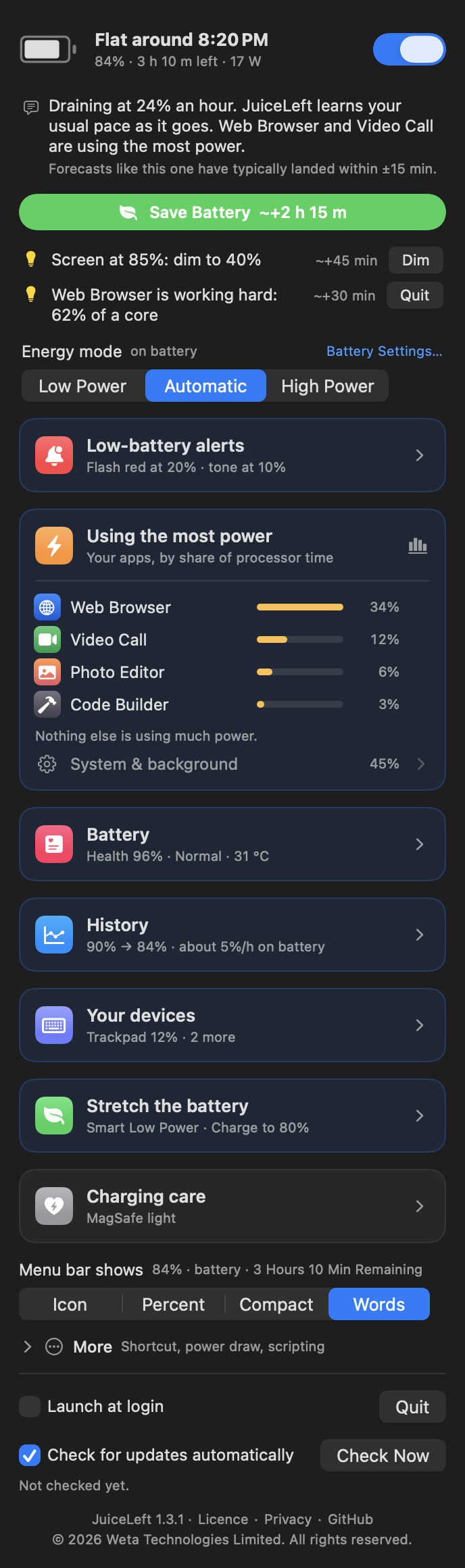
Three opinions of your drain rate — the gas gauge right now, the trend of the last 20 minutes, and what you typically drain at this time of day — blended by how wrong each has recently been. It checks itself every five minutes and re-weights.
It tells you how accurate it is
Every forecast made during a discharge is scored, once you plug in, against when the level really arrived. After a couple of discharges: “Forecasts like this one have typically landed within ±15 min.”
Save Battery, one click
Low Power Mode, the screen down to 40 %, the keyboard light off — with what that gains (~+3 h 15 m) before you click. One Undo puts everything back exactly; so does plugging in. The gain is estimated until JuiceLeft has measured what those changes save on your Mac.
Tips with one-click fixes
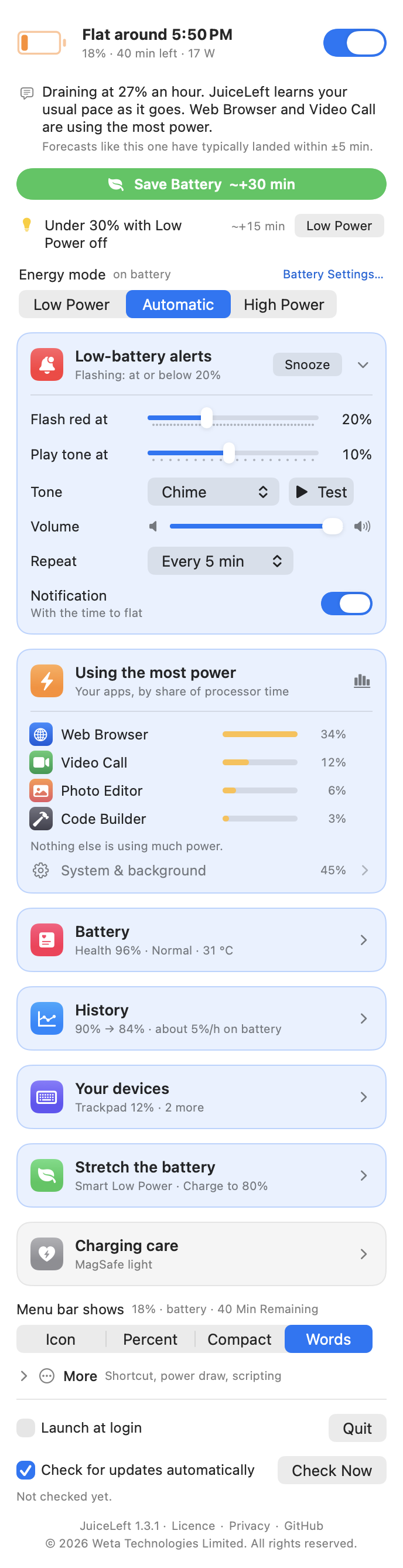
Only what is costing power right now: a bright screen (Dim), the keyboard light on in a lit room (Turn off), Low Power off under 30 % (Low Power), an app hogging a core (Quit), a hungry USB device. Each with its gain.
Warning and alert levels
At 20 % (yours to change) the item pulses red. At 10 % a tone plays — JuiceLeft's own chime or any macOS alert sound — once or every 2 / 5 / 10 minutes until you plug in. Optional notifications, a 30-minute snooze, and a 2 % hysteresis so a bounce can't sound it twice.
Energy mode, from the panel
Low Power · Automatic · High Power for the power source in use — the same setting as System Settings › Battery. Setting it needs root, so a short shell script is installed as a root job with one admin prompt; nothing but exactly b|c × 0|1|2 ever reaches pmset.
Stretch the battery
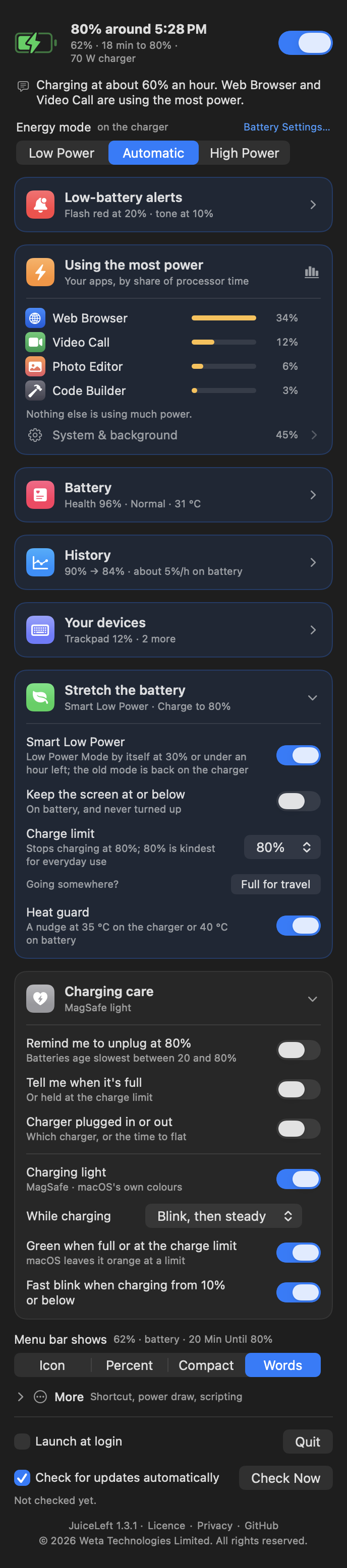
Smart Low Power by itself at 30 % or under an hour left, the old mode back on the charger. Keep the screen at or below a cap on battery. Charge limit (macOS 26.4+): Apple's own, 80–100 %, with Full for travel. Heat guard at 35 °C charging or 40 °C on battery.
Click, hold, hover
A click on the item opens the panel. Press and hold it to turn monitoring on or off without opening anything — the trackpad taps back. Rest the pointer on it for a card with the time in words and Flat around 4:22 PM. Or record a keyboard shortcut and open the panel from any app — no Accessibility permission.
Using the most power
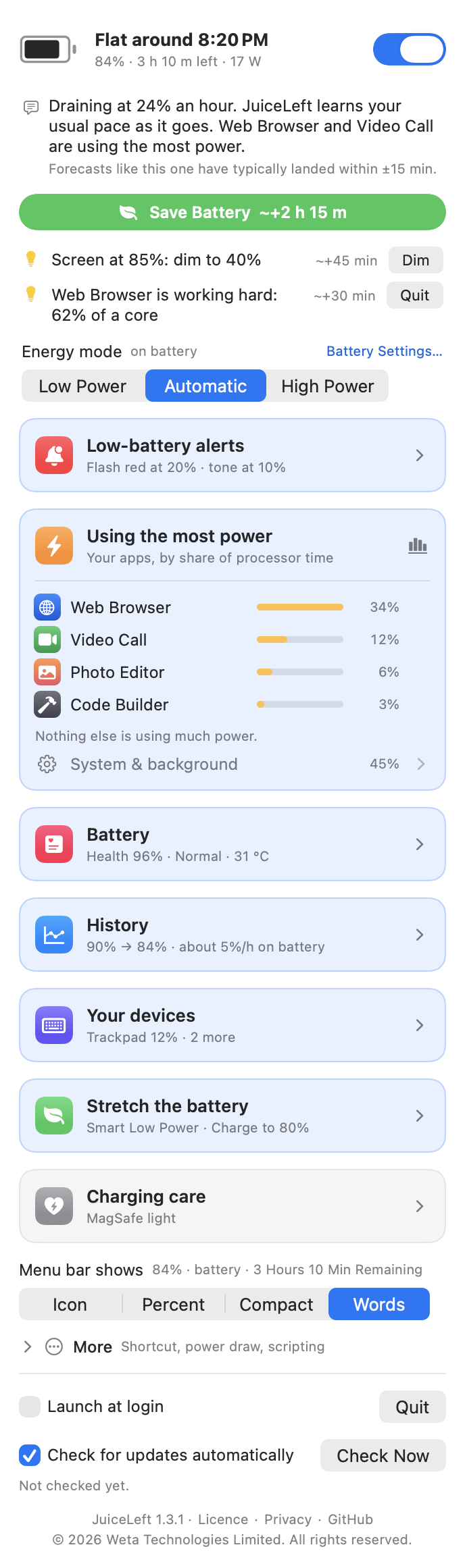
Your apps, the top five by share of processor time, helpers folded into the app that owns them, the rest as one System & background line. Each with a ✕ Quit: a graceful quit first, so unsaved work gets its save prompt; Force Quit only if the app is still there 5 s later, behind one confirmation.
Battery health, and a coach
Apple's own health figure as the headline, then condition, cycles, the capacities, temperature, voltage, charger watts, watts in or out, total draw, macOS's estimate for comparison — and how much of the last three days the battery sat full, cycles per week, the health trend, and a one-tap Set 80%.
History
The level over the last 12 hours, 24 hours or 3 days — blue on battery, green charging, the warning level dashed, a gap where the Mac slept — and the window in one line: 100% → 84% · about 8%/h on battery. Three days, a point a minute, kept on your Mac.
Your devices
The batteries of the Bluetooth mice, keyboards and trackpads connected to the Mac, read from macOS itself — no permission, nothing installed — and, if you turn it on, a notification when one gets low, at the level you pick, once per charge.
Your shortcuts and scripts
A juiceleft:// link runs a panel action: savebattery?on=1, mode?set=low, topup, monitoring?on=0, snooze. Five commands, every parameter checked, nothing else accepted — bind one to a shortcut of your own or a hotkey.
A plain-English line
“Draining at 14 % an hour, easier than your usual 20 % for this time of day.” On macOS 26 with Apple Intelligence on, the on-device model phrases it — and every number is checked against JuiceLeft's own, so it can never invent one. Optional; the template stands everywhere else.
Quiet by design
Samples the battery every 30 s and only draws when something changes; the app list and the tips only run while the panel is open. No Dock icon, no analytics, no network beyond a daily update check. Launch at login, and the menu bar showing the icon, the percent, the compact time or the words — and, if you like, the power draw (−12 W).
How it works
macOS's own “time remaining” reacts to every change in load. JuiceLeft's rests on three opinions and a memory — a few thousand readable lines of Swift and one short shell script.
The forecast
The swap
Control Center keeps a per-host preference that System Settings › Control Center sets to hide Apple's battery item, and picks up live. JuiceLeft sets the same value on launch (remembering what was there), copies Apple's saved menu-bar position to its own item so it lands in the same place, and on quit puts the original back. A switch in the panel turns the swap off at once.
The alerts
On battery, each level latches on the way down and only releases 2 % above it. The tone plays once on entering the alert level, again every repeat interval while still there, and again when a snooze runs out. The charger going in clears everything and re-arms.
What a change is worth
Out of the box, cautious defaults: the display's draw climbs steeply with brightness, Low Power trims about 15 %, and no default claim may exceed 30 % of the drain — such gains are marked ~. Every five minutes on battery JuiceLeft records the drain against brightness and Low Power and fits a tiny regression; once it has two dozen windows with real spread, its own numbers take over.
Every battery figure comes from IOPowerSources and the AppleSmartBattery registry entry — the same numbers as Apple's battery menu, plus the gas gauge's raw capacities so the forecast sees the level move between whole percents. Per-app energy from processor time through libproc. The charge limit through the same in-process client Apple's own UI uses. Nothing needs root but the energy modes.
The panel
Click the menu-bar item. A status header with the forecast, one plain sentence and how accurate it has been, Save Battery and the tips, the energy mode, then a card each for the alerts, the apps using the most power, battery health, stretching the battery and charging care. Light or dark, it follows your Mac — and Reduce Motion, Increase Contrast, the keyboard and VoiceOver.
Download & install
Download the installer and open it: Continue, Agree, Install — one password (or Touch ID), and JuiceLeft is in your menu bar with everything set up.
- Open the package. It is Developer ID signed and notarized by Apple (the official builds are signed and notarized by Weta Technologies Limited), so there is no Gatekeeper step — and the app it installs opens without a warning.
- Continue, Agree to the licence, Install. macOS asks for your password or Touch ID once: JuiceLeft goes into Applications, its helper for energy modes and the charging light is set up, and JuiceLeft opens in the menu bar. Nothing asks again — later updates arrive signed, from inside the app.
- Apple's battery icon disappears and JuiceLeft's item takes its spot, with the time left after it. It asks once whether it may post notifications; say no and the pulse and the tone still work.
Or build it from source
A few seconds with Apple's command-line developer tools (xcode-select --install):
git clone https://github.com/Weta-Technologies/JuiceLeft.git
cd JuiceLeft
./build.sh install
Builds build/JuiceLeft.app, copies it to /Applications and launches it. To uninstall, quit JuiceLeft (that puts Apple's battery icon back), run sudo /bin/sh /Applications/JuiceLeft.app/Contents/Resources/juiceleft-helper.sh uninstall if you ever set an energy mode, and move the app to the Trash — or ./build.sh uninstall from a source checkout. If the battery icon didn't come back, System Settings › Control Center › Battery › Show in Menu Bar is the switch.
- Test it:
JuiceLeft.app/Contents/MacOS/JuiceLeft --selftestwalks the alert rules, the forecast and its learning, the menu bar's words, the savings model, the tips, the guards, the click logic, the accessory-battery parsing and the URL scheme;--simulateruns a fake battery draining 1 % a second so you can watch the flash, the tone, the charger reset and the heat guard;./test-helper.shchecks the helper against a fakepmset. - Privacy: no analytics; the only network activity is the daily update check (a plain request to GitHub, which you can turn off) and the update you start. Updates are Ed25519-signed and verified before anything is unpacked. The helper only ever runs
pmset; the Apple Intelligence sentence is generated on device; settings and what it has learned are two files in your home folder, yours to delete; accessory battery levels are read live and never stored.