Lives in your menu bar
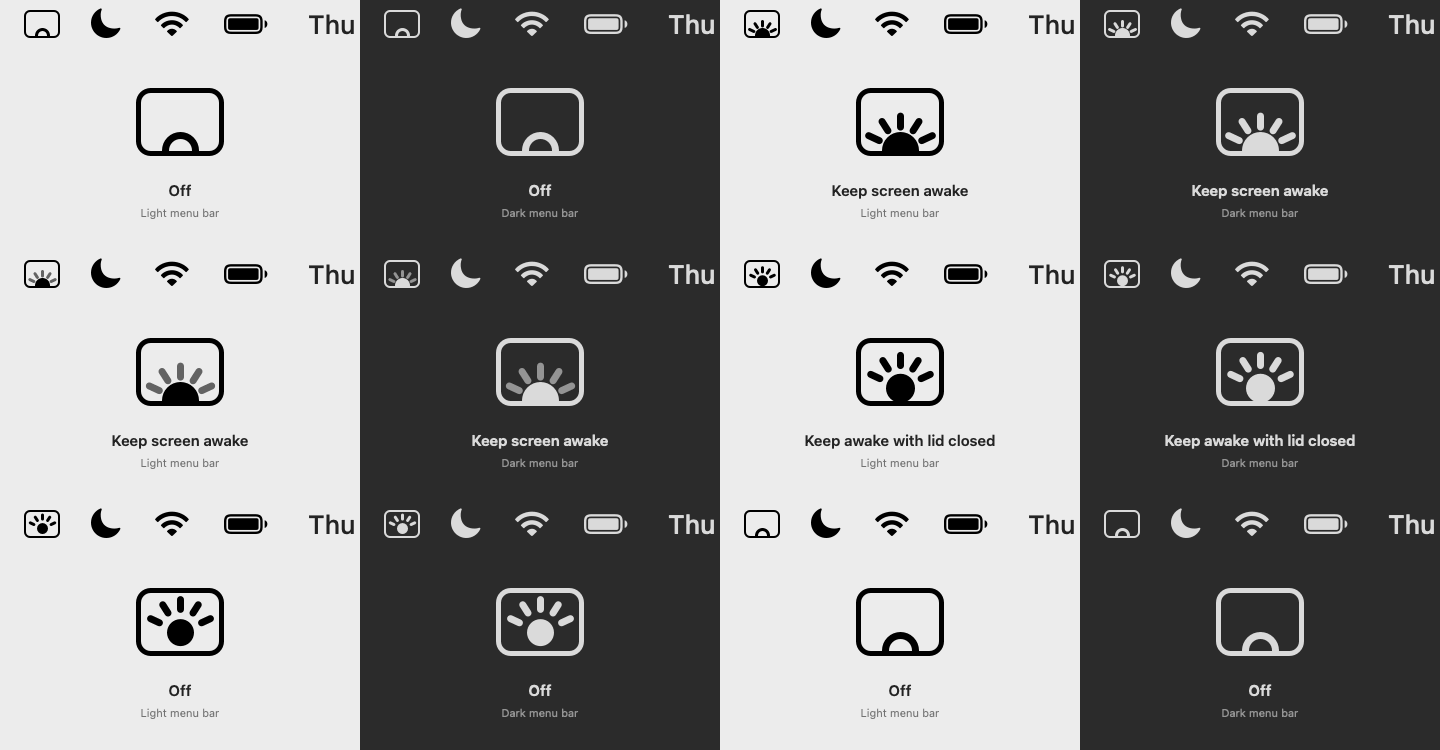
A screen with the app icon's sunrise inside. Off is a hollow sun resting on the bottom of the screen. Turn SleepLess on and the sun climbs in and five rays fan out one after another; they breathe slowly while it is on, and it all sets again when it turns off. In lid-closed mode the sun lifts to the middle of the screen as a full disc. It is a template image, so it fits light and dark menu bars, and the animation pauses while your screens sleep.
Everything you need, nothing you don't
One panel, a handful of switches, automations that mind themselves, and guard rails so it never bites you.
Keep awake
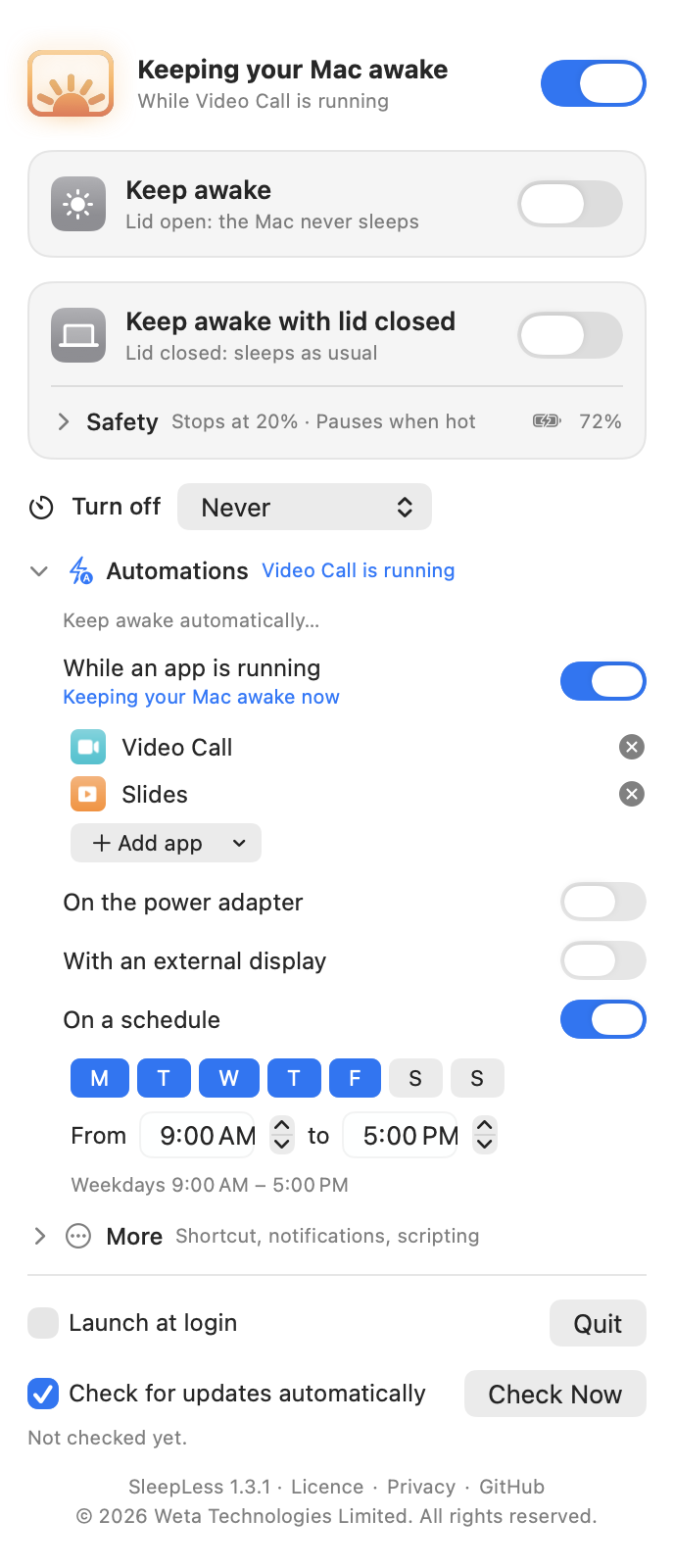
Lid open: the Mac never idle-sleeps — the same assertions as caffeinate -di. No admin rights. When idle the screen can stay on, dim to a brightness you pick after 30 s to 10 min (any key press brings it straight back), or sleep as usual while the Mac keeps going — for overnight downloads and renders.
Automations
Keep awake by itself while an app is running (a call, a presentation, a build), on the power adapter, with an external display, or on a schedule — overnight windows included. All off by default; the status line says which one is holding, and a click pauses it until its reason ends. No polling, no permissions.
Keep awake with lid closed
Sets the one flag that beats lid-close sleep on Apple Silicon (SleepDisabled) through a tiny root helper you set up once — one prompt, your password or Touch ID — and that afterwards updates itself only from signed files. Close the lid and the screen and keyboard light go dark while everything keeps running — no unlock when you open it.
Safety cut-offs
Only while charging. Pause when running hot. Low-battery cutoff (default 20 %). Turn on when you plug in, off when you unplug. All under one Safety disclosure with a one-line summary.
Turn off — after, or at a time
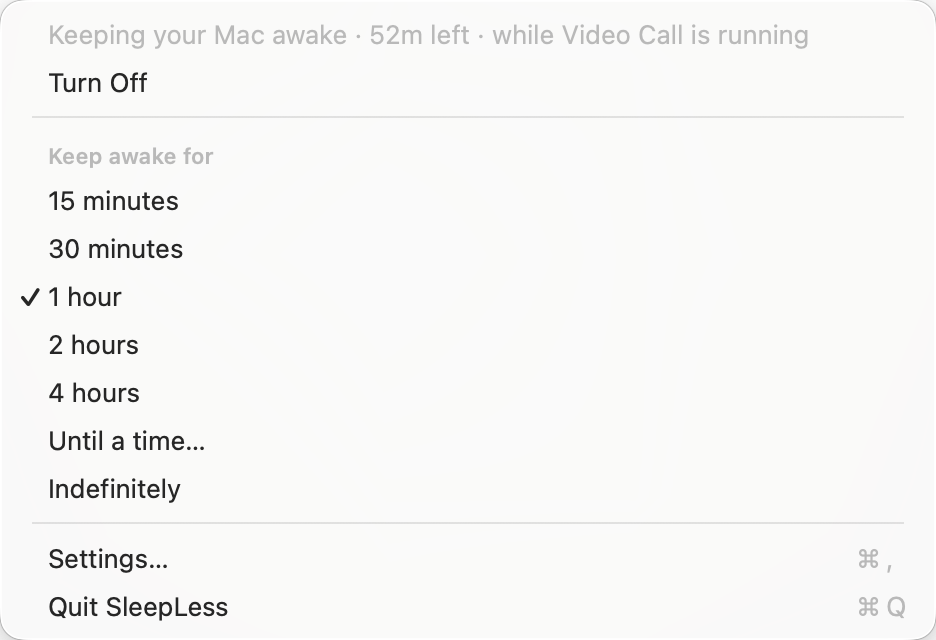
15 min to 4 hours, or at a time you pick (tomorrow if it has passed). The status line counts down, a progress bar runs, and the time left can sit beside the menu-bar icon. Then everything turns off and normal sleep is back.
Click, hold, right-click
A quick click on the menu-bar icon turns SleepLess on (bringing back the modes you last had on) or off. Press and hold for the settings panel. Right-click for the quick menu: 15 minutes to 4 hours, until a time, indefinitely.
Shortcut & scripting
Record a keyboard shortcut that works in any app — no Accessibility permission. Drive it from a shortcut, a script or a shell with sleepless://on?minutes=30, on?until=17:30, off, toggle. Optional notifications when a timer ends or a safety rule steps in.
Watchdog
If the app crashes or hangs, the helper restores normal sleep within about two minutes; quitting normally restores it immediately. Your Mac can never get stuck unable to sleep.
How it works
Two different problems, two different mechanisms — both readable in a few hundred lines of Swift and one shell script.
Lid open
SleepLess holds two IOKit power assertions, PreventUserIdleDisplaySleep and PreventUserIdleSystemSleep, and releases them the moment you turn it off or quit. Dimming uses the same private DisplayServices brightness calls the keyboard keys use, and watches the session idle time to restore your brightness on the first input.
Lid closed
1 or 0 to a request file and rewrites it every 30 s.pmset -a disablesleep 1|0 to match.0 — the watchdog. The helper only undoes a SleepDisabled it set itself.The panel reads the live SleepDisabled flag, so it shows whether lid-closed mode is really active — and tells you if something else has disabled sleep.
The panel
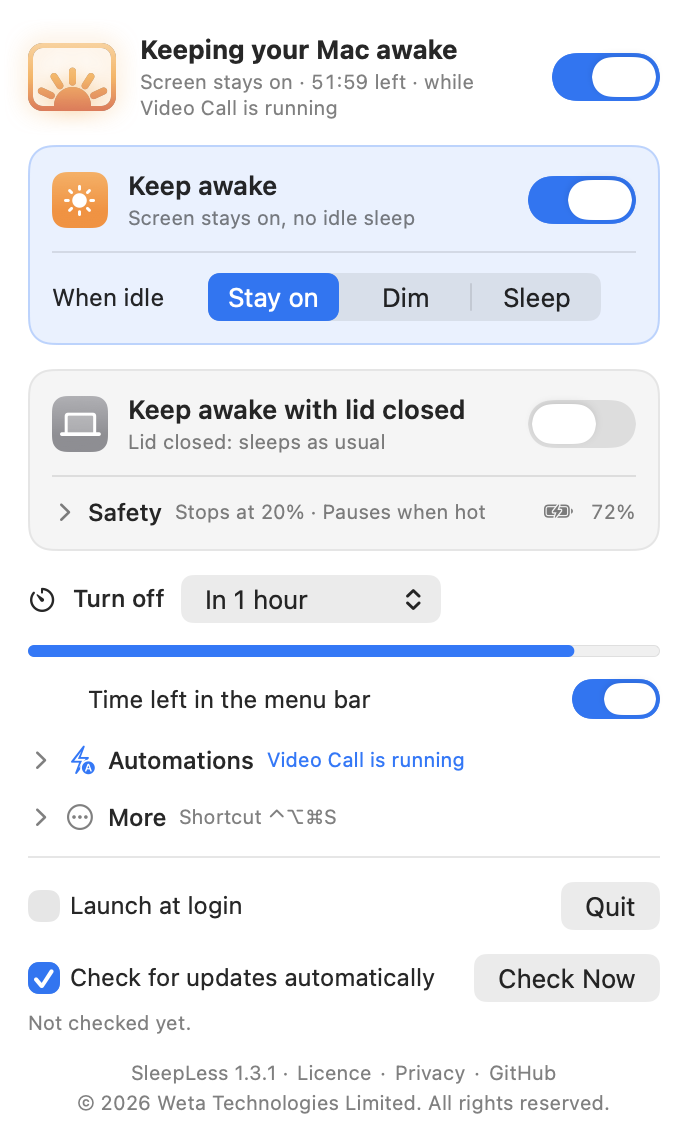
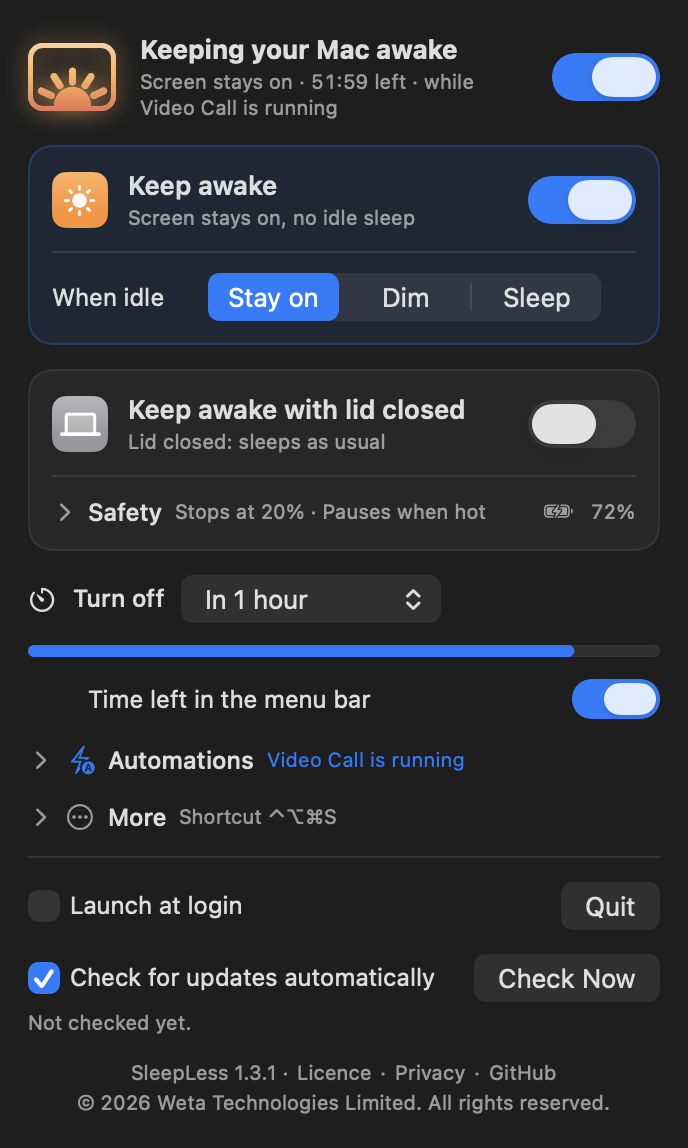
Press and hold the menu-bar icon. A status header that says what is happening — the mode, the time left, which automation is holding — a card per mode, the timer, and the safety rules, automations and extras each one click away behind a one-line summary. Light or dark, it follows your Mac — and Reduce Motion, Increase Contrast, the keyboard and VoiceOver. Right-click the icon for the quick menu.
Download & install
Download the installer and open it: Continue, Agree, Install — one password (or Touch ID), and SleepLess is in your menu bar with everything set up.
- Open the package. It is Developer ID signed and notarized by Apple (the official builds are signed and notarized by Weta Technologies Limited), so there is no Gatekeeper step — and the app it installs opens without a warning.
- Continue, Agree to the licence, Install. macOS asks for your password or Touch ID once: SleepLess goes into Applications, its helper for lid-closed mode and the charging light is set up, and SleepLess opens in the menu bar. Nothing asks again — later updates arrive signed, from inside the app.
Or build it from source
A few seconds with Apple's command-line developer tools (xcode-select --install):
git clone https://github.com/Weta-Technologies/SleepLess.git
cd SleepLess
./build.sh install
Builds build/SleepLess.app, copies it to /Applications and launches it. Look for the screen-with-a-sunrise icon in the menu bar (if you use a menu-bar organiser app, or the bar is crowded near the notch, it may be tucked away there). Click it to turn SleepLess on or off; press and hold it for the settings panel; right-click it for the quick menu. Built from source, the panel offers a one-time setup for the helper behind lid-closed mode (your password or Touch ID, once — the package does this for you); the helper then updates itself from signed files, and SleepLess itself checks GitHub for updates about once a day and installs them from the panel. To uninstall, quit SleepLess, run sudo /bin/sh /Applications/SleepLess.app/Contents/Resources/sleepless-helper.sh uninstall (removes the helper and restores normal sleep) and move the app to the Trash — or ./build.sh uninstall from a source checkout.
- Test it:
SleepLess.app/Contents/MacOS/SleepLess --selftestchecks the click logic, settings migration, the timer clock, schedules, automations and the URL scheme without changing anything on the Mac (--selftest-hardwareis the one that nudges brightness and the keyboard light for a second);./test-helper.shchecks the helper's watchdog with a fakepmset. - Privacy: no analytics; the only network activity is the daily update check (a plain request to GitHub, which you can turn off) and the update you start. Updates are Ed25519-signed and verified before anything is unpacked. Automations use only what macOS tells every app (running apps, displays, power, the clock), the shortcut is a system hot key rather than an event tap, notifications are sent only if you turn them on, and the URL scheme accepts nothing but its own few verbs. The helper only ever runs
pmset; any process running as your user could write the request file, but the worst case is a Mac that stays awake, and the watchdog still applies.